Understanding and Reviewing Calls in AnalyzeMyCalls
This comprehensive guide will walk you through accessing, reviewing, and analyzing calls - the core functionality of AnalyzeMyCalls. Whether you're an agent reviewing your own performance or a manager coaching your team, this guide covers everything you need to know.
Written By Alex Petrovic
Last updated About 1 year ago
Prerequisites
Before you begin, ensure you have:
Active AnalyzeMyCalls account (Agent, Manager, or Admin)
Calls recorded and processed in the system
Understanding of your role's permissions
Understanding Access Permissions
Who can see what:
Agents: Can only view their own calls
Managers: Can view all calls from their team members
Admins: Can view all calls across the entire organizational hierarchy
💡 Coming Soon: Agents will be able to view teammates' calls for peer learning
Navigating to Agent Calls
Step 1: Access the Call Review Interface
Log into AnalyzeMyCalls
From the main navigation, click Home
Select Agent Calls
You'll see the main call review interface with two panels:
Left Panel: Team/User selection and call list
Right Panel: Detailed call information
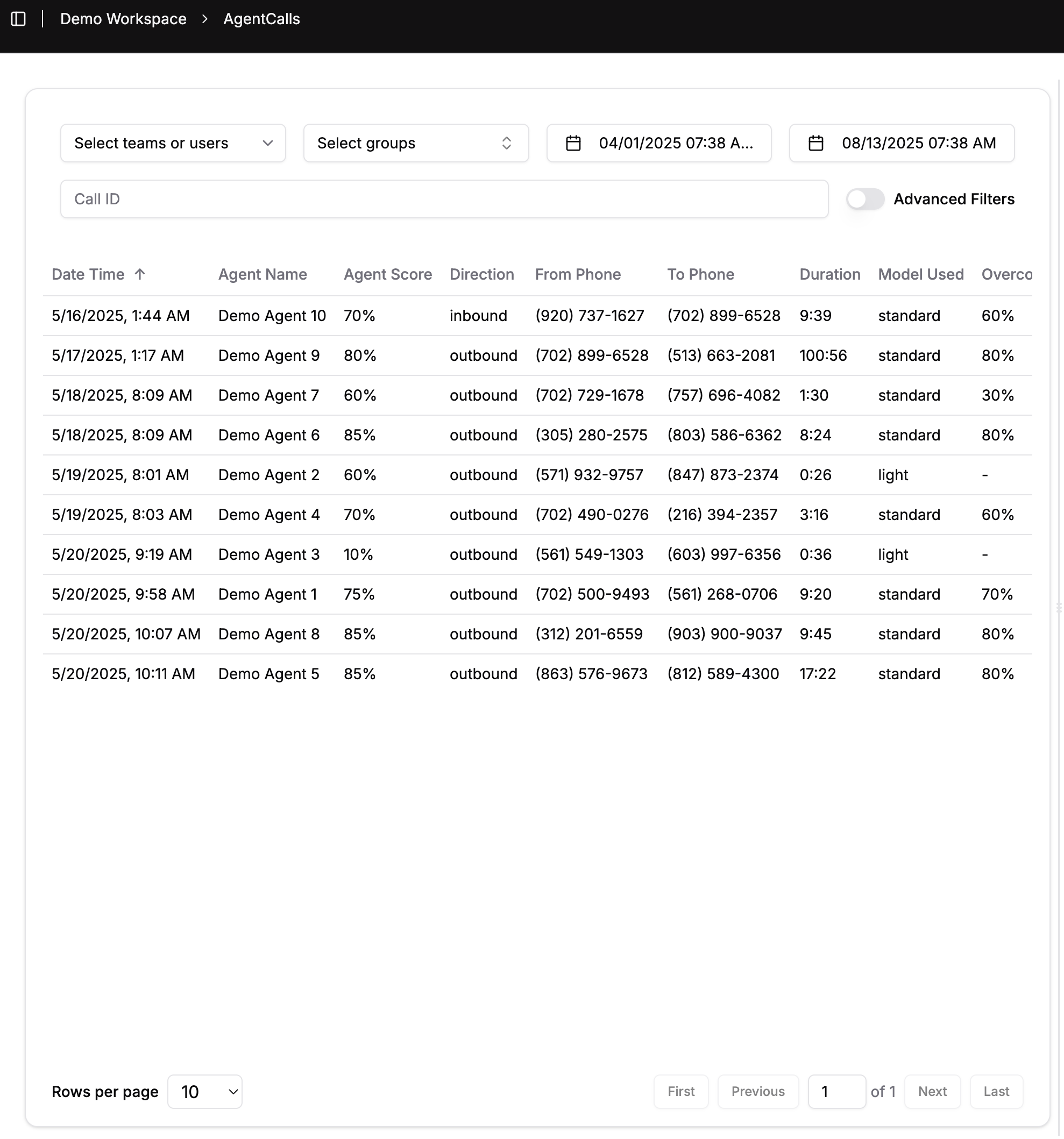
The Agent Calls interface showing team selection and call list
Selecting Teams and Filtering Calls
Step 1: Choose Your View
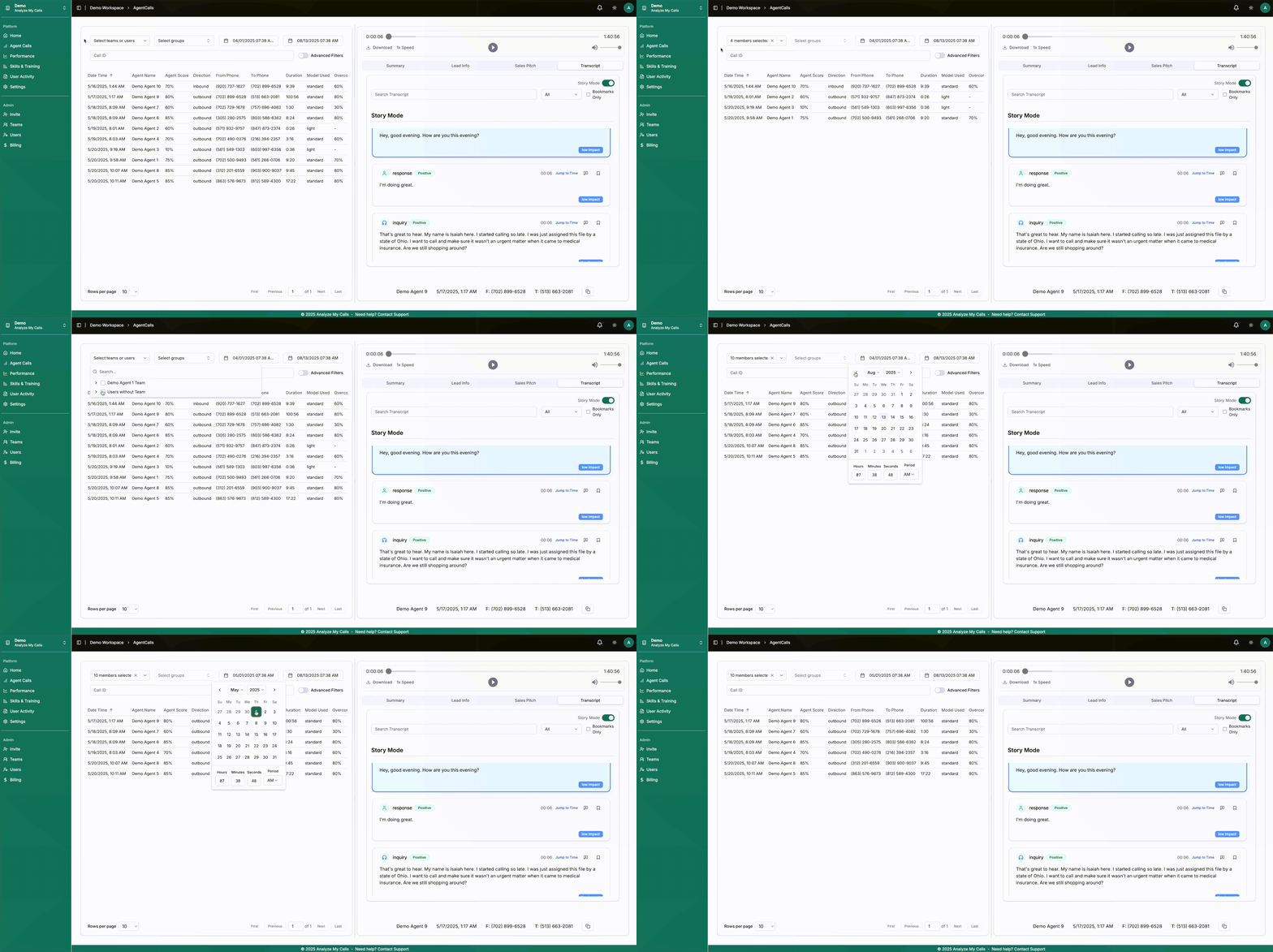
Select Teams or users dropdown:
Managers: Select your Team to view all team members' calls
Admins: Select any Team in the organization
View "Users without Team" for unassigned agents
Select groups dropdown:
Choose between Inbound or Outbound Teams
Helps narrow down to specific call types
📹 Video: Watch how to navigate between different teams and user groups
Step 2: Set Your Date Range
Click the date picker fields
Select your desired date range
Can go back indefinitely based on available data
AMC can backfill historical calls as needed
Step 3: Use Advanced Filters
Click "Advanced Filters" to access powerful search options:
Search by Contact:
Phone number (From Phone or To Phone)
Call Characteristics:
Duration (minimum minutes)
Direction (Inbound/Outbound)
Call Type:
Completed
In Progress
Prioritized
Error
Performance Metrics:
Score Settings (filter by performance thresholds)
Lead Quality:
Very Good
Good
Neutral
Bad
Very Bad
Call Outcomes:
Include Voicemail
Appointment Set
Lead Qualified
Lead is Shopping
Step 4: Search for Specific Calls
Use the Call ID search bar to find specific calls by their unique identifier
Understanding the Call List
Call List Columns
Each row displays:
Date Time: When the call occurred
Agent Name: Who handled the call
Agent Score: Overall performance percentage
Direction: Inbound or Outbound
From/To Phone: Call participants
Duration: Length in minutes:seconds
Model Used:
Standard (for longer calls)
Light (for shorter calls)
Overcoming Objections: Score percentage
💡 Pro Tip: Click any column header to sort the list
Reading Performance Indicators
Green scores (typically 70%+): Meeting or exceeding targets
Orange scores (typically 50-69%): Need improvement
Red scores (below 50%): Requires immediate attention
Note: Color thresholds are customizable per company
Reviewing Individual Calls
Step 1: Select a Call
Click on any call in the list to load its details in the right panel
Step 2: Navigate Call Details
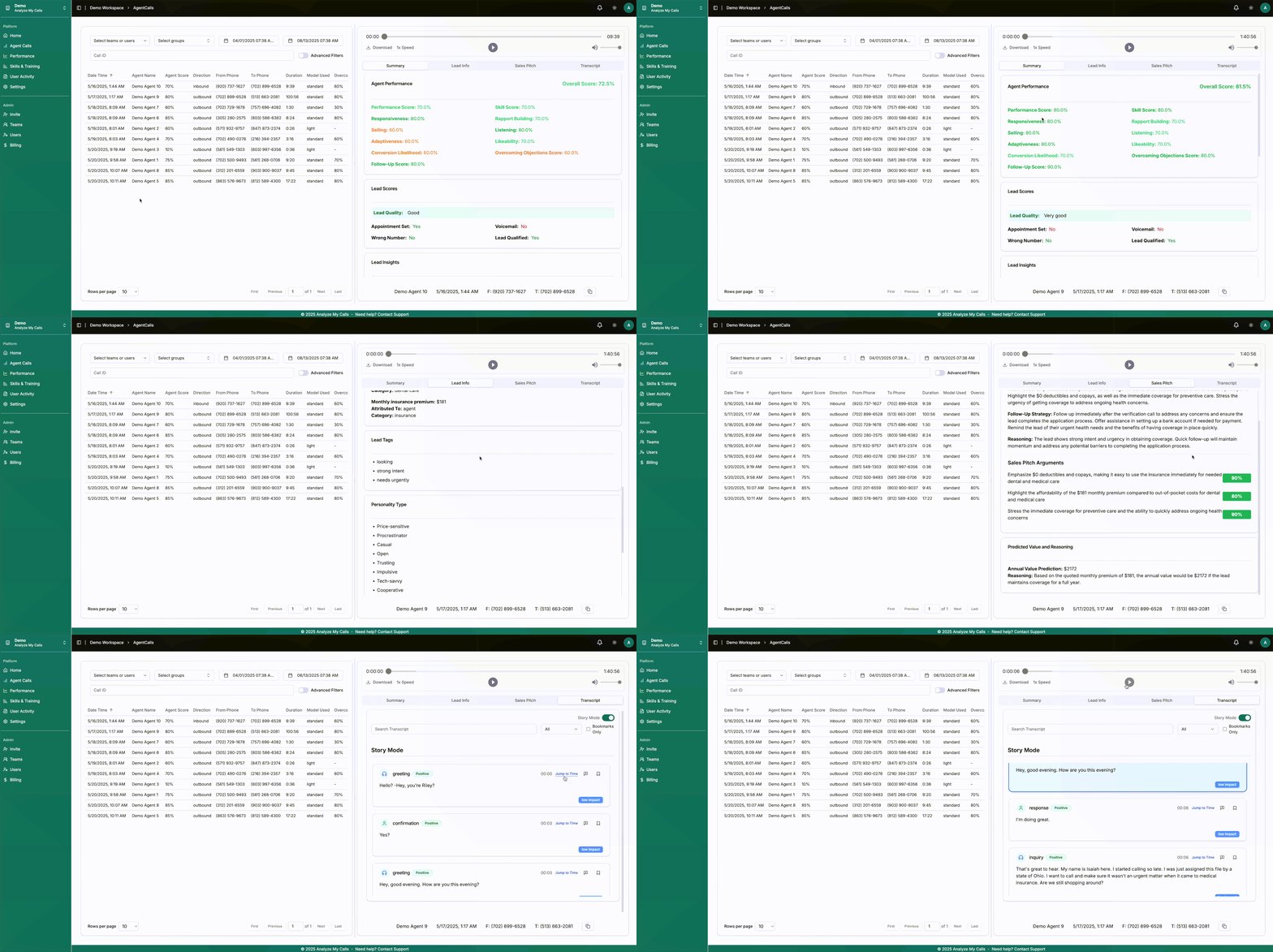
The call details panel has four main tabs:
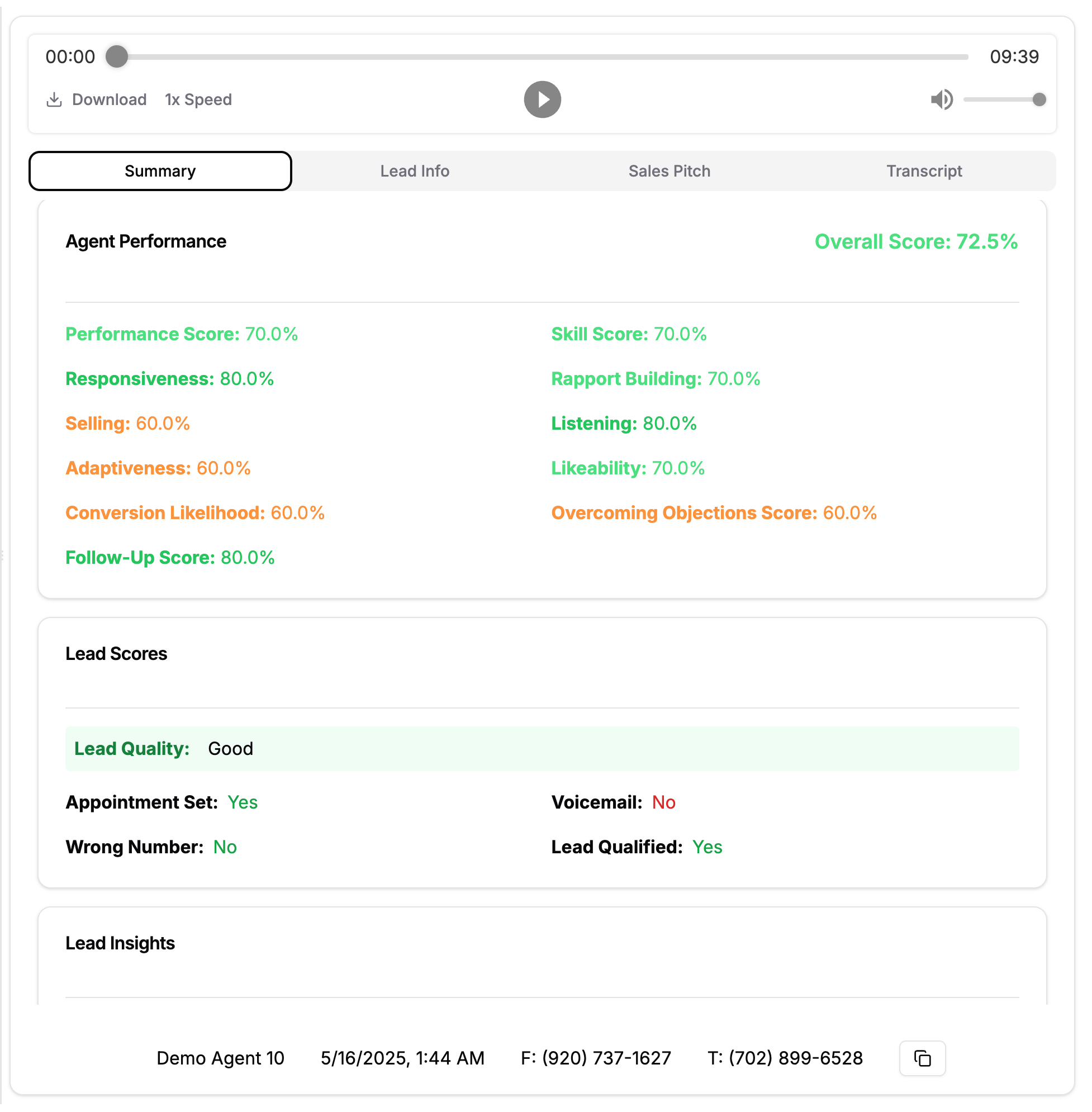
The four tabs provide comprehensive call analysis
📊 Summary Tab
The Summary tab provides the complete performance overview:
Agent Performance Section
Overall Score: Comprehensive performance rating (0-100%)
Key Metrics:
Performance Score: Overall execution quality
Skill Score: Average of all skill assessments
Responsiveness: How quickly agent addresses customer needs
Selling: Effectiveness in presenting solutions
Adaptiveness: Ability to adjust approach
Conversion Likelihood: AI prediction of deal success
Follow-Up Score: Quality of next steps established
Skill Assessments:
Rapport Building: Connection with customer
Listening: Active listening demonstration
Likeability: Professional demeanor
Overcoming Objections: Handling concerns effectively
Lead Scores Section
Key Indicators:
Lead Quality: AI assessment (Very Good to Very Bad)
Appointment Set: Yes/No
Voicemail: Yes/No
Wrong Number: Yes/No
Lead Qualified: Yes/No
Lead Insights
AI-generated insights about the lead's situation, needs, and potential
📹 Video: Detailed walkthrough of all performance metrics and what they mean
📋 Lead Info Tab
Comprehensive lead information including:
General Lead Details
Name and contact information
Lead source and status
Previous interaction history
Lead Analysis
Lead Needs: Identified requirements
Pain Points: Challenges the lead faces
Health Conditions/Prescriptions: (Customizable field based on industry)
Dollars Discussed: Budget or pricing mentioned
Lead Tags: Categories for tracking and organization
Lead Profiling
Personality Type: AI-identified personality profile
Lead Attributes: Behavioral characteristics
Shopping For: Who the lead is buying for (customizable)
💡 Note: These fields can be customized based on your industry needs
Sales Pitch Tab
Pitch Performance Analysis
Pitch Focus
How well the agent followed the prescribed sales pitch
Deviation points and improvements needed
Follow-up Strategy
Quality of next steps established
Specific actions planned
Timeline commitments
Reasoning
Lead's urgency level
Recommended approach for deal progression
AI suggestions for moving forward
Sales Pitch Arguments
Grades the agent on:
Price justification
Product positioning
Unique selling propositions
Competitive differentiation
Value demonstration
Predicted Lead Value: AI-estimated deal value based on conversation details
Transcript Tab
Standard Transcript View
Full conversation with timestamps
Speaker identification (Agent/Customer)
Search functionality: Find specific keywords or phrases
Playback sync: Click any line to jump to that moment in the call
Story Mode
Transform your transcript into an organized narrative:
Automatic Categorization:
Greeting
Discovery/Qualification
Product Explanation
Lead Inquiry
Objection Handling
Pricing Discussion
Next Steps
Closing
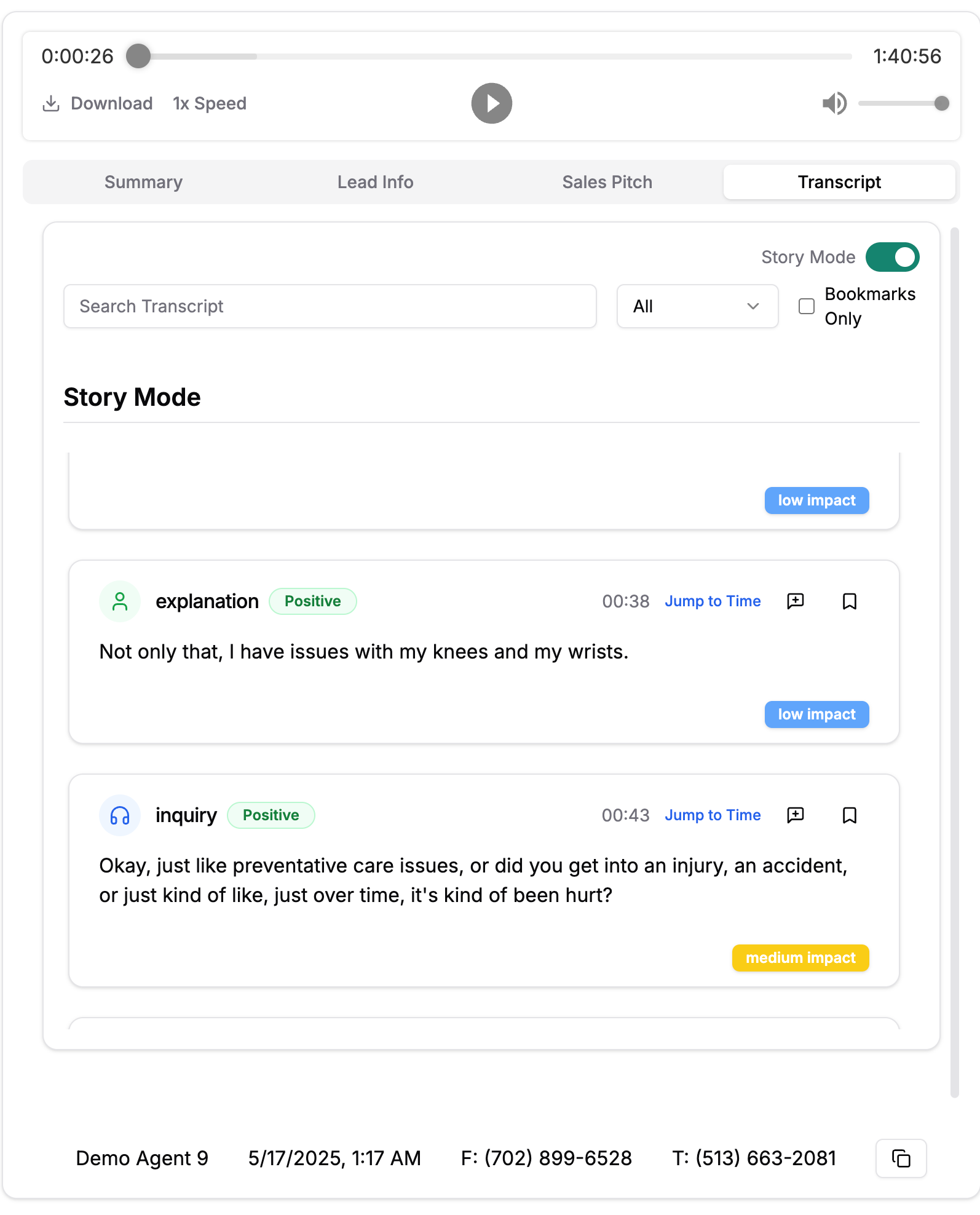
Story Mode breaks down conversations into digestible sections
Story Mode Features
Impact Levels
High Impact: Critical moments (budget, objections, decisions)
Low Impact: Standard conversation flow
Feedback Options
Click "Response" to validate agent performance
Select "Positive" for exemplary handling
Add annotations for coaching notes
Time Navigation
Click "Jump to Time" to hear specific sections
See exact timestamps for each story segment
💡 Pro Tip: Story Mode categories are fully customizable per company
Audio Player Controls
Playback Features
Located at the top of the call details:
Play/Pause: Standard playback controls
Timeline Scrubber: Click anywhere to jump to that point
Speed Control: 1x, 1.5x, or 2x playback speed
Download: Save call audio for offline review
Time Display: Current position / Total duration
Synchronized Features
Transcript highlights current speaking position
Click transcript lines to jump to that audio moment
Story Mode sections linked to audio timestamps
Best Practices for Call Review
For Agents (Self-Review)
Daily Review Routine
Review your lowest-scoring call each day
Identify one improvement area
Practice the skill before next shift
Focus Areas
Objection handling techniques
Rapport building openings
Clear next-step establishment
For Managers (Team Review)
Weekly Team Patterns
Filter by team and last 7 days
Sort by score to find coaching opportunities
Identify common objections across team
1-on-1 Coaching Sessions
Use Story Mode to focus on specific sections
Add annotations for action items
Download exemplary calls for team training
Performance Tracking
Monitor score trends over time
Celebrate improvements
Address consistent low scores quickly
For Admins (Organizational Review)
Cross-Team Analysis
Compare team performance metrics
Identify best practices from high performers
Spot organization-wide training needs
Quality Assurance
Use Advanced Filters for compliance checks
Monitor specific outcome metrics
Ensure consistent scoring across teams
Troubleshooting Common Issues
Call Not Appearing
Check date range selection
Verify team/user selection
Confirm call has been processed (may take up to 30 minutes)
Metrics Not Showing
Some metrics require minimum call duration
Voicemails may have limited scoring
Check if call type supports full analysis
Audio Playback Issues
Ensure browser audio permissions are enabled
Try refreshing the page
Check internet connection for streaming
Story Mode Not Available
Feature requires sufficient call duration
May not be available for certain call types
Contact support if consistently missing
Tips for Maximum Value
1. Use Advanced Filters Strategically
Save common filter combinations mentally
Focus on one metric at a time for improvement
Compare high vs. low performing calls
2. Leverage Story Mode
Quick coaching on specific sections
Identify patterns in successful calls
Build best practice examples
3. Track Progress
Note baseline scores when starting
Set weekly improvement goals
Celebrate wins with your team
4. Share Success
Download great calls for training
Use annotations to highlight best practices
Create learning opportunities from top performers
Next Steps
Now that you understand call review:
Need Help?
Technical Support: support@analyzemycalls.ai
Feature Requests: Share with your Customer Success Manager
Training Resources: Access our video library
Best Practices: Join our user community
Last updated: [08/12/2025]