Getting Started: Inviting Users to AnalyzeMyCalls
Welcome to AnalyzeMyCalls! This guide will walk you through inviting team members to your workspace and help them activate their accounts. Whether you're adding a single user or your entire team, we've got you covered.
Written By Alex Petrovic
Last updated 10 months ago
Prerequisites
Before you begin, make sure you have:
[ ] Admin access to AnalyzeMyCalls
[ ] Email addresses for all users you want to invite
[ ] Determined the appropriate role for each user (Agent or Admin)
Understanding User Roles
AnalyzeMyCalls has two user roles:
Admin
Full platform access
Can invite and manage users
Can modify teams and team hierarchies
Access to all settings and configurations
Agent
Access to call performance data
Can view their own metrics and main dashboard
Cannot invite users or modify settings
Method 1: Inviting a Single User
Follow these steps to invite one user at a time:
Step 1: Access the Invite Interface
Log in to your AnalyzeMyCalls account as an Admin
Click on "Invite" from the main navigation menu
Select the "Single Invite" tab
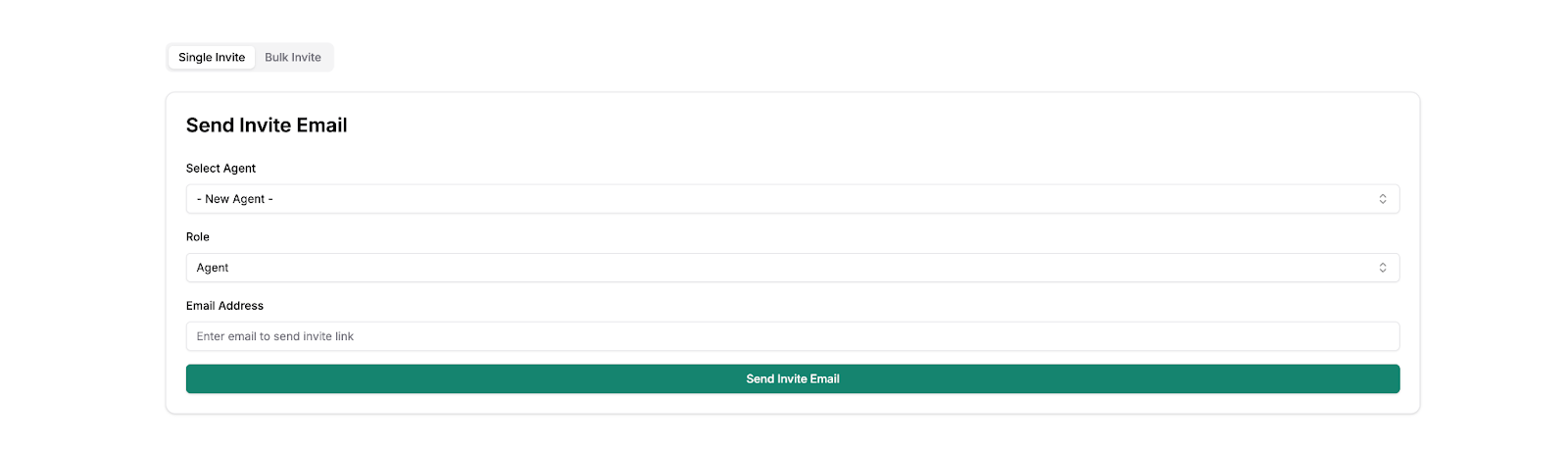
The Single Invite tab is selected by default
Step 2: Create the Invitation
Select Agent: Click the dropdown menu
If inviting a new user, select "- New Agent -"
If inviting an existing user from an existing CRM, select their name from the list
Choose Role: Click the Role dropdown and select either:
Agent - For team members who will use the platform
Admin - For users who need administrative privileges
Enter Email: Type the user's email address in the "Email Address" field
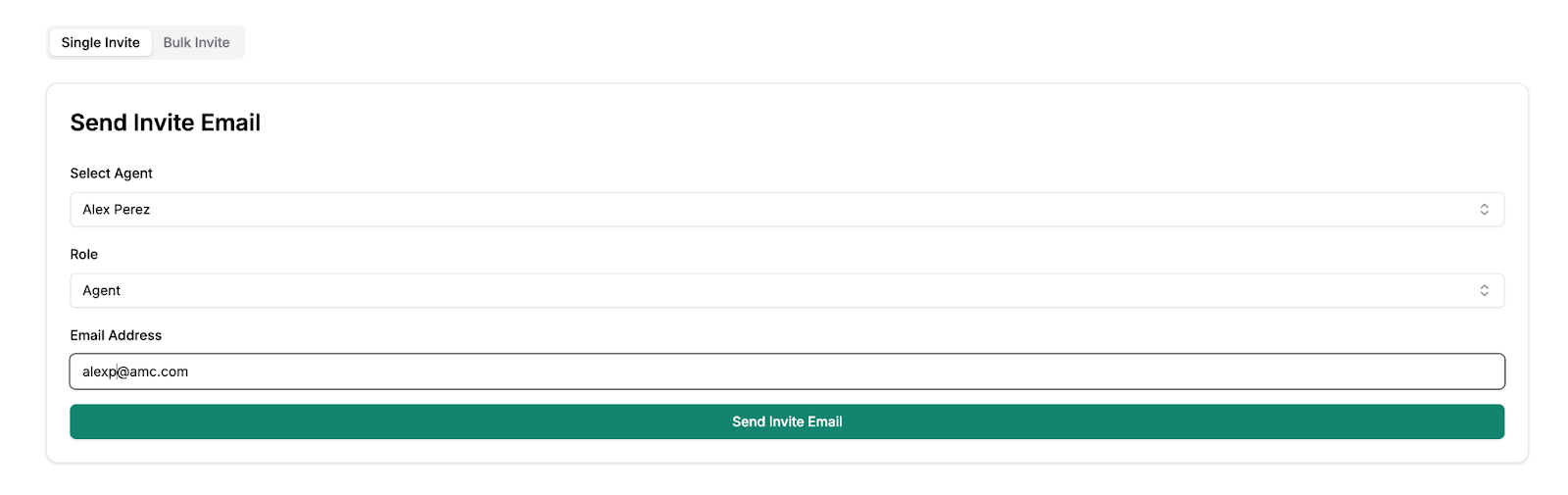
Ensure all fields are completed before proceeding
Step 3: Send the Invitation
Click the green "Send Invite Email" button
Wait for the success message: "Invite email sent successfully!"
The system will automatically send an activation email to the specified address
Success! The user will receive an email within 1-2 minutes.
Method 2: Bulk Inviting Multiple Users
Perfect for onboarding entire teams at once:
Step 1: Access Bulk Invite
From the Invite screen, click the "Bulk Invite" tab
You'll see the Bulk Invite Users interface
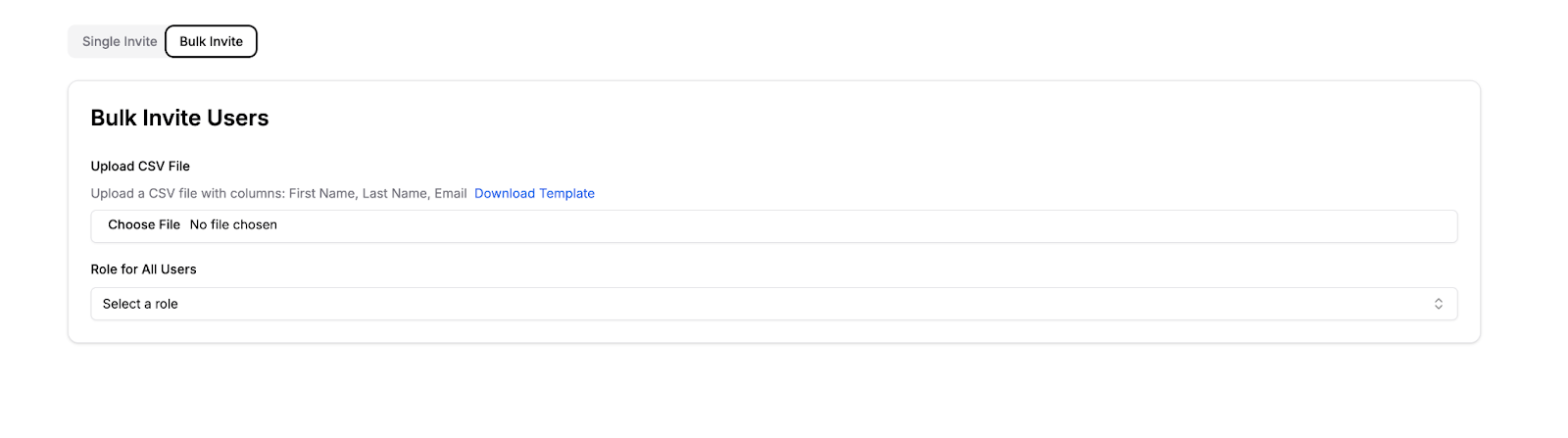
The Bulk Invite tab allows you to add multiple users simultaneously
Step 2: Prepare Your CSV File
Create a CSV file with the following columns:
First Name (required)
Last Name (required)
Email (required)
Pro Tip: You can download a template by clicking the "Download Template" link
Example CSV format:
First Name,Last Name,Email
John,Smith,john.smith@company.com
Sarah,Johnson,sarah.johnson@company.com
Michael,Williams,michael.williams@company.com
Step 3: Upload and Configure
Click "Choose File" and select your CSV file
Select the role for all users in the "Role for All Users" dropdown
This role will apply to everyone in your CSV file
Review your selections
Click "Send Bulk Invites"
Note: There's no limit to the number of users you can invite at once!
User Activation Process
Once invited, users need to activate their accounts. Here's what they'll experience:
Step 1: Receiving the Invitation Email
Users will receive an email with:
Subject line: "Activate Your Account"
Sender: noreply@analyzemycalls.ai
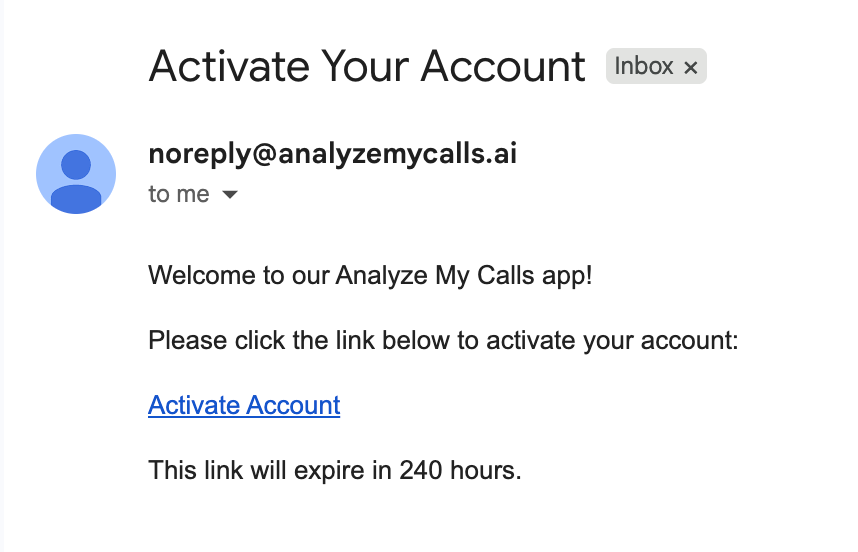
The activation email contains a secure link valid for 240 hours (can vary based on company preference)
Step 2: Clicking the Activation Link
User clicks the "Activate Account" button in the email
They'll be redirected to the sign-up and activation page
The link expires after 240 hours (10 days) (Can be adjusted by preference)
Important: If the link expires, an Admin must resend the invitation
Step 3: Setting Up Password
Users will need to create a password that meets these requirements:
[ ] Minimum 8 characters
[ ] At least 1 capital letter
[ ] At least 1 special character
Step 4: Check Your Verification Code Email
Users will receive an email titled “Verify your AnalyzeMyCalls Account” with their verification code. Use this code on the activation page to verify your account and start using the platform.
Step 5: First Login
After setting their password, users will be directed to:
Agents: Call Performance Dashboard (limited platform access)
Admins: Administrative dashboard with full menu access
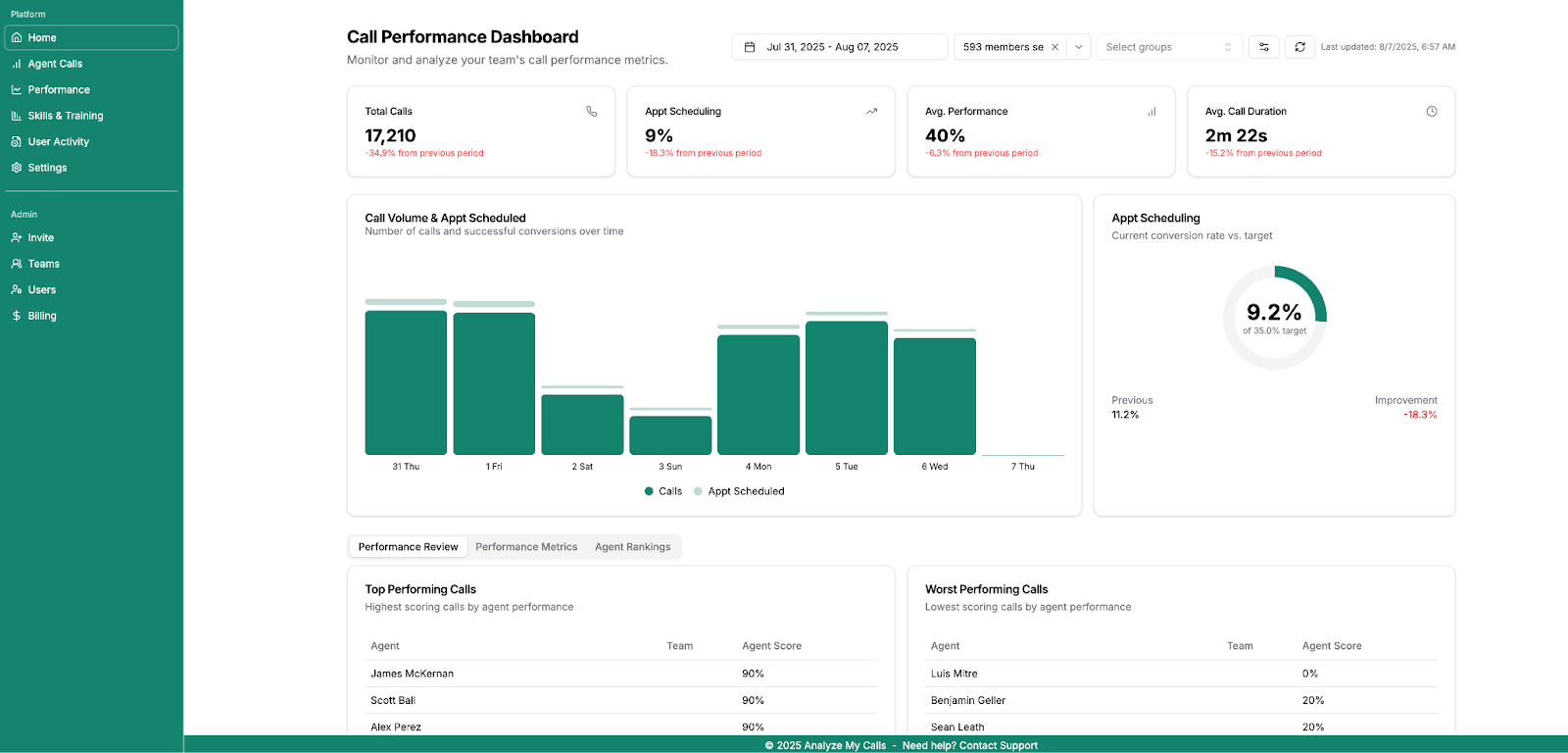
Agents see the Call Performance Dashboard upon first login
Managing Invitations
Resending Invitations
If a user didn't receive their email or the link expired:
Go to the Single Invite tab
Select the user's name from the dropdown (if they’re an existing user in a CRM they'll appear in the list)
For new users, manually enter the email address
Re-enter their email address
Click "Send Invite Email"
Troubleshooting Common Issues
User Didn't Receive the Email
Check spam/junk folders
Verify the email address is correct
Ensure noreply@analyzemycalls.ai is whitelisted
Resend the invitation
"Link Expired" Error
Links expire after 240 hours (example setting but can vary by company preference)
Admin must resend the invitation
User should activate immediately upon receiving
Password Won't Accept
Ensure password includes:
8+ characters
1+ capital letter (A-Z)
1+ special character (!@#$%^&*)
Wrong Role Assigned
Admins can change user roles after activation:
Go to Settings > Users
Click on the user's name
Change their role
Save changes
Best Practices
Send invitations in batches - Group new users by role for easier bulk inviting
Communicate with your team - Let them know to expect the invitation email
Set up team hierarchies first - Configure your teams before inviting agents
Document role responsibilities - Make sure users understand their access level
Next Steps
Once your users are activated:
Need Help?
If you encounter any issues not covered in this guide:
Contact Support at support@analyzemycalls.ai
Check our FAQ section
Schedule a training session with your Customer Success Manager
Last updated: [08/06/2025]