Managing Teams and Team Hierarchy in AnalyzeMyCalls
This guide will walk you through creating teams, assigning team members, and organizing your team hierarchy for optimal performance tracking and management.
Written By Alex Petrovic
Last updated About 1 year ago
Prerequisites
Before you begin, ensure you have:
Admin access to AnalyzeMyCalls
A list of Team Members and their reporting structure
Understanding of your organizational hierarchy
Understanding Team Structure
User Roles and Permissions
Agents
Can view their own performance data
No team management capabilities
Team Leaders
All Agent capabilities PLUS:
Access to Performance, Skills & Training, and User Activity for their Team
Can view metrics and performance of their entire Team
Cannot add other Members or Team Leaders to their Team
Admins
All Team Leader capabilities PLUS:
Access to Admin Panel (Invite, Teams, Users, Billing)
Can create, modify, and delete Teams
Can assign/reassign all users
Can view and edit un-assigned users as well as their performance
Team Hierarchy Rules
Teams can have sub-teams (e.g., Regional Leaders with Managers as sub-team Leaders)
Each team has one Team Leader
Agents can belong to main Teams and Sub-teams
Unassigned users remain in the "Unassigned" pool
Team Leaders are also Members of a Team
Creating a New Team
Step 1: Access Team Management
Log in as an Admin
Navigate to the Admin Panel
Click on Teams in the navigation menu
Step 2: Create Your Team
Navigate to a Team Leader or Manager
Click the "Child Teams" button
Enter the following information:
Team Name (e.g., "West Coast Sales Team")
Select Team Leader (select from available users using the vertical ellipsis (⋮) next to their name)
Select Team Members (select from User Selection table)
Click "Save" to create the Team
Note: Once a Root Team is created, on the Team Selection table, the user will have two options:
Team Overview: Add to or update the currently selected Team
Child Team: Create a Child of currently selected Team
Success! Your new Team is now created and ready for members.
Method 1: Adding Individual Team Members
Step 1: Access Team Hierarchy
Navigate to Teams > Team Hierarchy
You'll see two views available:
List View (default) - Shows all users and their assignments
Visualize - Visual representation of Team structure
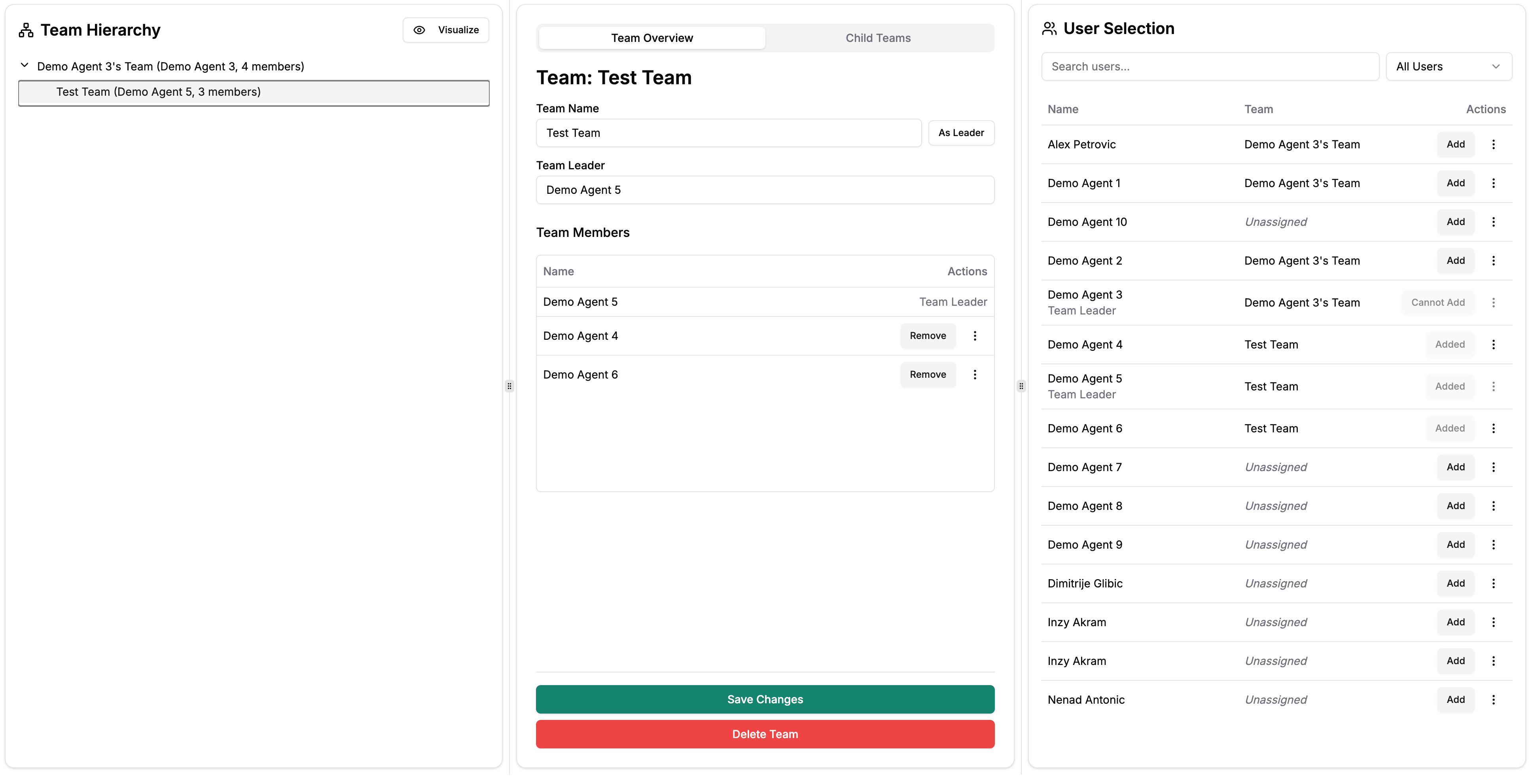
The List View shows all users with their current team assignments
Step 2: Assign Users to Teams
In the User Selection panel (right side), locate the user you want to assign
The User Selection panel is dependent on the Team selected under Team Hierarchy and will show different users based on their team allocation
Use the search bar to quickly find specific users
Look at the Actions column:
"Add" button = User can be added to a team
"Cannot Add" = User is a Team Leader already assigned
"Added" = User is already on this Team
Step 3: Add the User
Click the "Add" button next to the user's name
Select the Team from the dropdown menu
The user's Team assignment updates immediately
If the user is already assigned to a team, you’ll be prompted to confirm whether you want to proceed with the Team Member assignment.
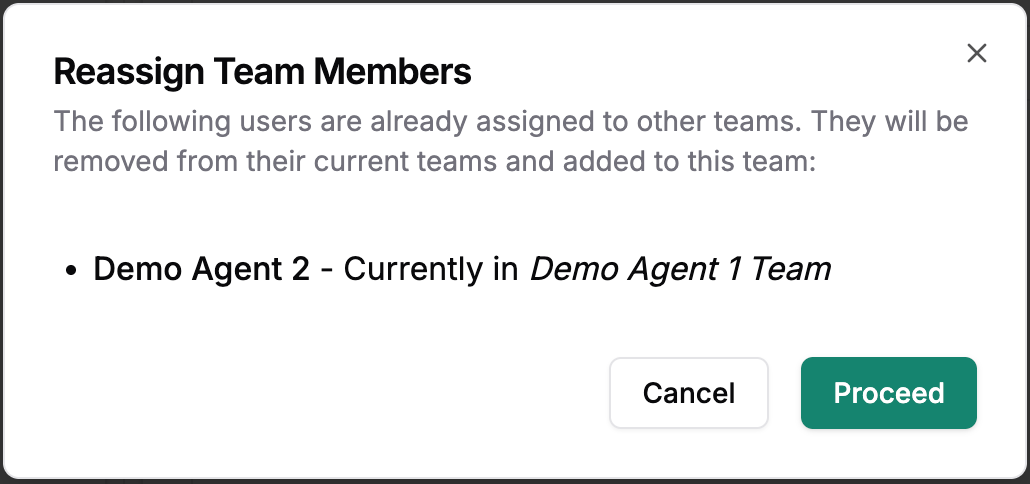
📹 Watch this quick video showing the team selection process in action
Managing Team Members
To remove or reassign Team Members:
Click the vertical ellipsis (⋮) next to their name
Select "Remove" to un-assign them from a Team
They'll return to the "Unassigned" pool
Note: Team Leaders show "Cannot Add" and must be unassigned from their current team before being added elsewhere.
Method 2: Bulk Upload via CSV
Perfect for initial setup or major reorganizations:
Step 1: Prepare Your CSV File
Create a CSV with these columns:
First Name (required)
Last Name (required)
Email (required)
Current CSV Format (Being Improved)
The current system supports positioning to determine hierarchy:
First Name,Last Name,EmailJohn,Smith,john.smith@company.com
Sarah,Johnson,sarah.johnson@company.com,John Smith
Mike,Williams,mike.williams@company.com,John Smith
In this example, John Smith is the Team Leader, with Sarah and Mike as Team Members
Optional Improved CSV Format
We suggest using this clearer format for better accuracy:
First Name,Last Name,Email,Role,Team Name,Reports ToJohn,Smith,john.smith@company.com,Team Leader,West Coast Sales,
Sarah,Johnson,sarah.johnson@company.com,Agent,West Coast Sales,John Smith
Mike,Williams,mike.williams@company.com,Agent,West Coast Sales,John Smith
Lisa,Davis,lisa.davis@company.com,Team Leader,East Coast Sales,
Tom,Brown,tom.brown@company.com,Agent,East Coast Sales,Lisa Davis
Pro Tip: Contact your Account Manager for a CSV template
Step 2: Upload Your CSV
Navigate to Teams > Import Teams
Click "Choose File" and select your CSV
Review the preview to ensure accuracy
Click "Import Teams"
Step 3: Verify Import
Return to Team Hierarchy view
Confirm all Teams were created correctly
Check that Team Leaders and members are properly assigned
Important: The system creates new Teams automatically based on your CSV data
Using Visualization Mode
The Visualization mode provides a graphical view of your Team Structure:
Accessing Visualization
From Team Hierarchy, click the "Visualize" button
See your Teams displayed in a tree structure
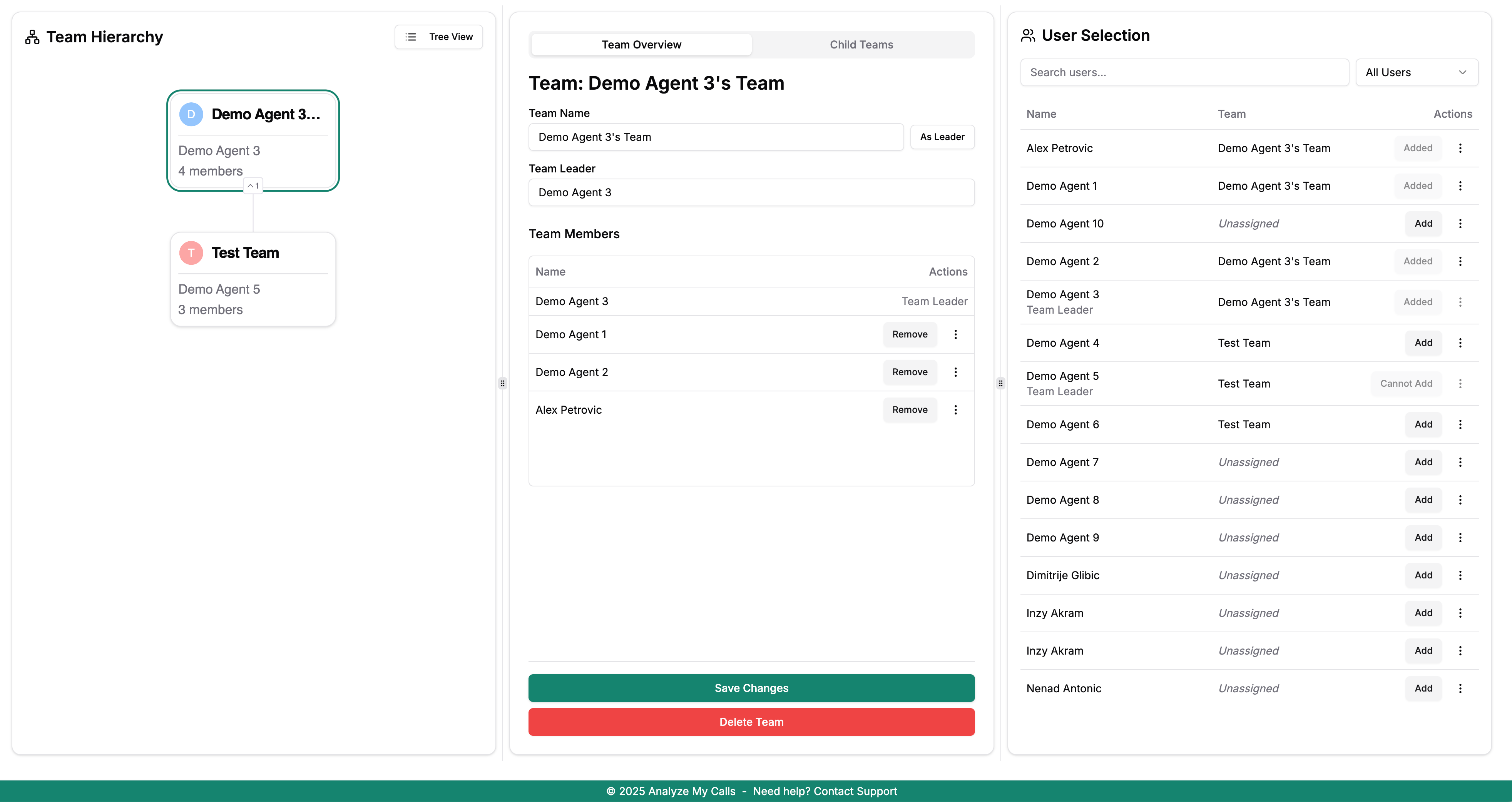
Visualization mode shows Team relationships in an easy-to-understand format
Visualization Features
View-only mode - No editing capabilities
Team Member count displayed on each team node
Hierarchical display shows reporting relationships
Click Teams to see Member details
Use Cases:
Present Team Structure to Leadership
Identify unbalanced Team sizes
Visualize reporting relationships
Best Practices for Team Management
1. Organizational Structure First
Map out your complete Hierarchy before creating Teams
Identify all Team Leaders and their direct reports
Consider geographical or functional groupings
2. Naming Conventions
Use clear, consistent Team Names (e.g., "Region - Function - Leader Name")
Examples:
"West Coast - Sales - Smith"
"Northeast - Customer Success - Johnson"
3. Regular Maintenance
Review Team assignments monthly
Update when employees join or leave
Reassign Team Leaders before they leave
4. Sub-team Strategy
For complex organizations:
Regional Leader (Main Team Leader)
District Manager A (Sub-team Leader)
Agents 1-5
District Manager B (Sub-team Leader)
Agents 6-10
Troubleshooting Common Issues
"Cannot Add" Team Leader
Problem: Need to reassign a Team Leader Solution:
First, un-assign them from their current team
Assign a new Team Leader to their old team
Now you can add them to a new team
User Not Appearing in List
Problem: Can't find a user to assign Solution:
Check if they've been invited and activated their account
Use the search function in User Selection
Check if they're already assigned (filter by "All Users")
CSV Upload Errors
Problem: Teams not creating correctly Solution:
Verify email addresses match existing users
Check for extra spaces or special characters
Ensure Team Leaders are listed before their Members
Contact support with your CSV for validation
Performance Considerations
Team Size Recommendations
Optimal team size: 5-12 members per Team Leader
Maximum recommended: 20 members per Team
Sub-teams: Use for teams larger than 15 members
Reporting Structure
Team Leaders can see all their members' data
Sub-team Leaders see only their sub-team
Admins have visibility across all Teams
Next Steps
Once your teams are organized:
Need Help?
CSV Template: Contact your Account Manager
Team Structure Consultation: Contact your Account Manager
Technical Issues: support@analyzemycalls.ai
Video Tutorials: Access our Team Management Video Library
Last updated: [08/06/2025]