Manage Reviews in AnalyzeMyCalls
Written By Alex Petrovic
Last updated 11 months ago
Manage Reviews: AI-Powered Call Coaching
Transform your coaching process with intelligent call discovery and structured reviews that drive measurable performance improvements.
Overview
The Manage Reviews feature eliminates the manual hunt for coaching opportunities by using AI to instantly surface your most impactful calls. Whether you need to showcase excellence or address improvement areas, you can now find the perfect calls in seconds and deliver structured feedback that accelerates agent development.
Prerequisites
Before you begin:
Admin or Manager access to AnalyzeMyCalls
At least one day of recorded calls in the system
15-30 minutes for your first review session
Understanding the Manage Reviews Dashboard
The Manage Reviews section has four powerful components:
🔍 AI Call Finder
Natural language search for calls
AI-powered suggestions for coaching opportunities
Instant access to best and worst performers
📋 Review Queue
Staging area for calls pending review
Filter and sort capabilities
Quality score and sentiment indicators
📊 Review History
Complete record of all completed reviews
Track agent progress over time
Edit or revisit past feedback
📈 Metrics
Daily, weekly, and monthly review quotas
Completion tracking
Team coaching consistency metrics
Step 1: Finding Calls with AI Call Finder
Accessing AI Call Finder
Navigate to Reviews from your main navigation
Click the AI Call Finder tab
You'll see an intelligent search interface ready for natural language queries
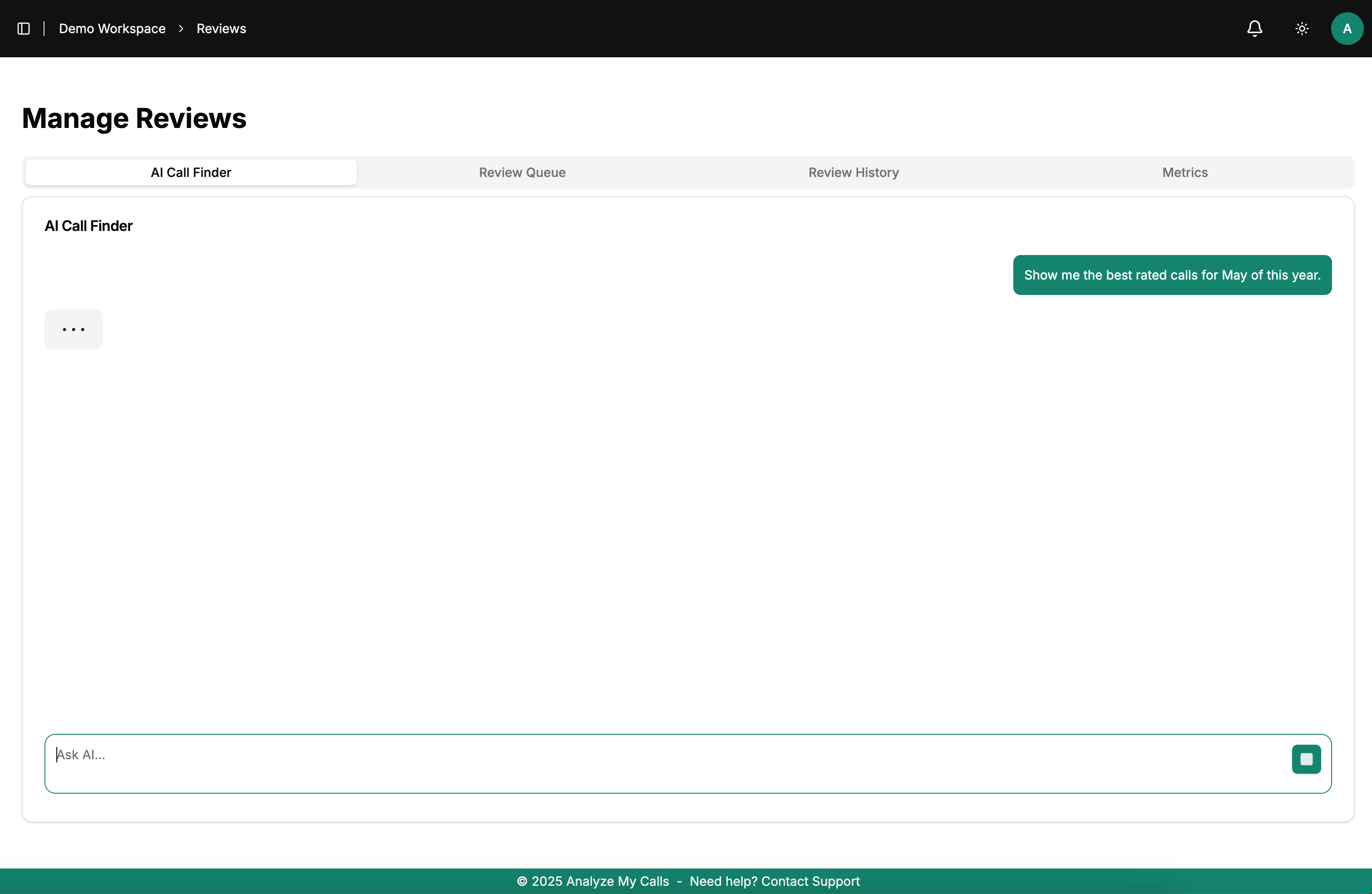
The AI Call Finder uses natural language to surface relevant calls instantly
Using Natural Language Prompts
Instead of complex filters, simply type what you're looking for:
✅ Example Prompts That Work:
"Show me the best rated calls for May of this year"
"Find calls where agents struggled with pricing objections"
"Pull up calls from new agents that need coaching"
"Show me successful cold calls from this week"
💡 Pro Tip: The AI understands context, so you can ask for "calls that went wrong" or "examples of great objection handling" and it will find relevant matches.
Quick Actions with Pre-built Prompts
Click the green suggestion button for instant results:
"Show me the best rated calls for [current month]" - Perfect for finding exemplary performances to share with the team
⚡ Time Saver: These pre-built prompts are optimized based on what managers search for most often.
Step 2: Reviewing Your Call Results
Understanding the Results Table
Once AI Call Finder returns results, you'll see:
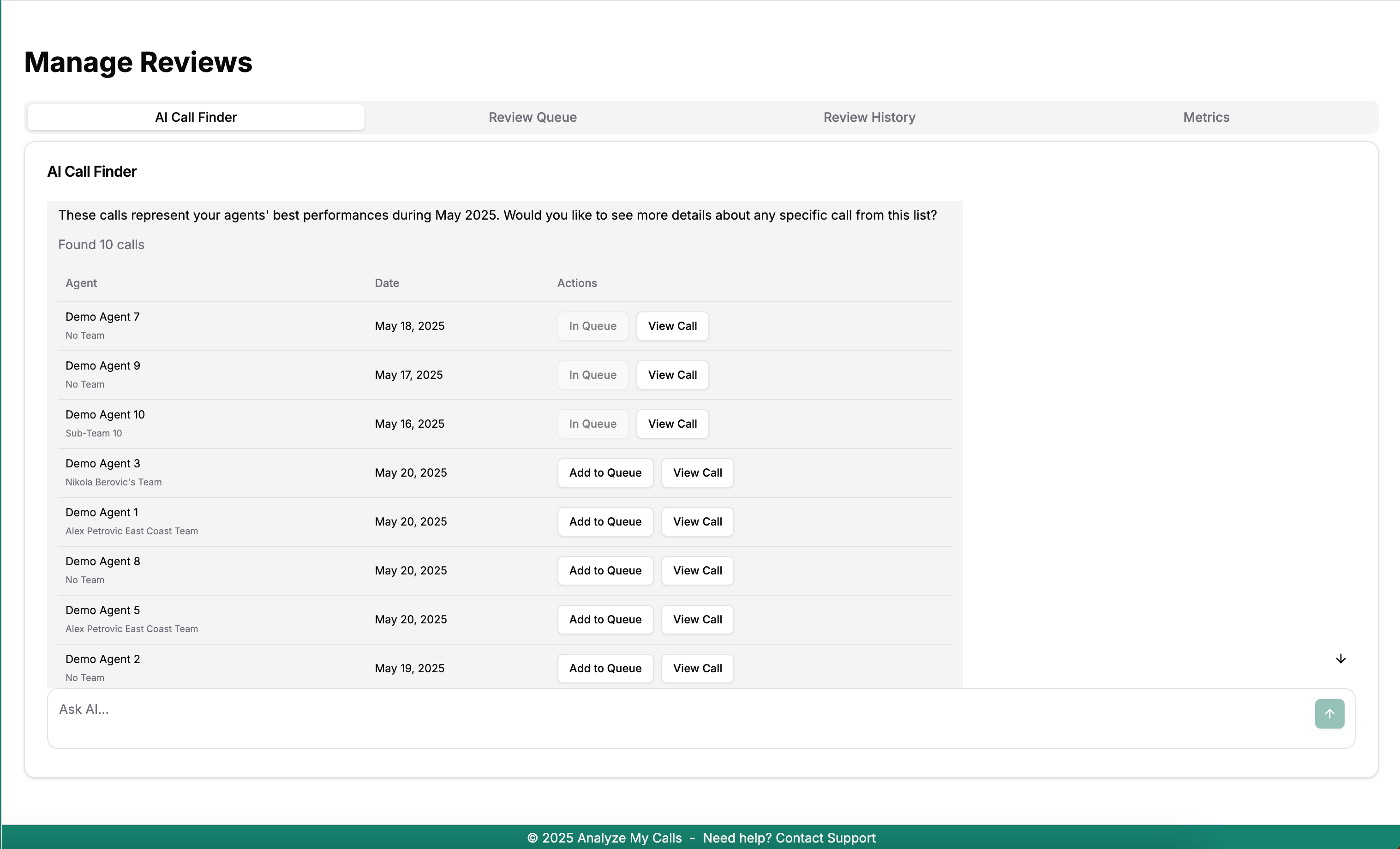
Results show agent names, dates, queue status, and quick actions
Key Information Displayed:
Agent: The team member who handled the call
Date: When the call occurred
Actions: Current status (In Queue) and View Call button
Evaluating Calls for Review
Click View Call to preview any result
Review the call summary and key moments
Assess if this call offers coaching value
Look for patterns across multiple calls
⚠️ Important: The system shows you the highest-impact calls first, but always preview before adding to your queue.
Step 3: Building Your Review Queue
Adding Calls to Queue
For each call you want to review:
Click Add to Queue button
The status will change from "Add to Queue" to "In Queue"
Continue adding calls until you have your coaching set
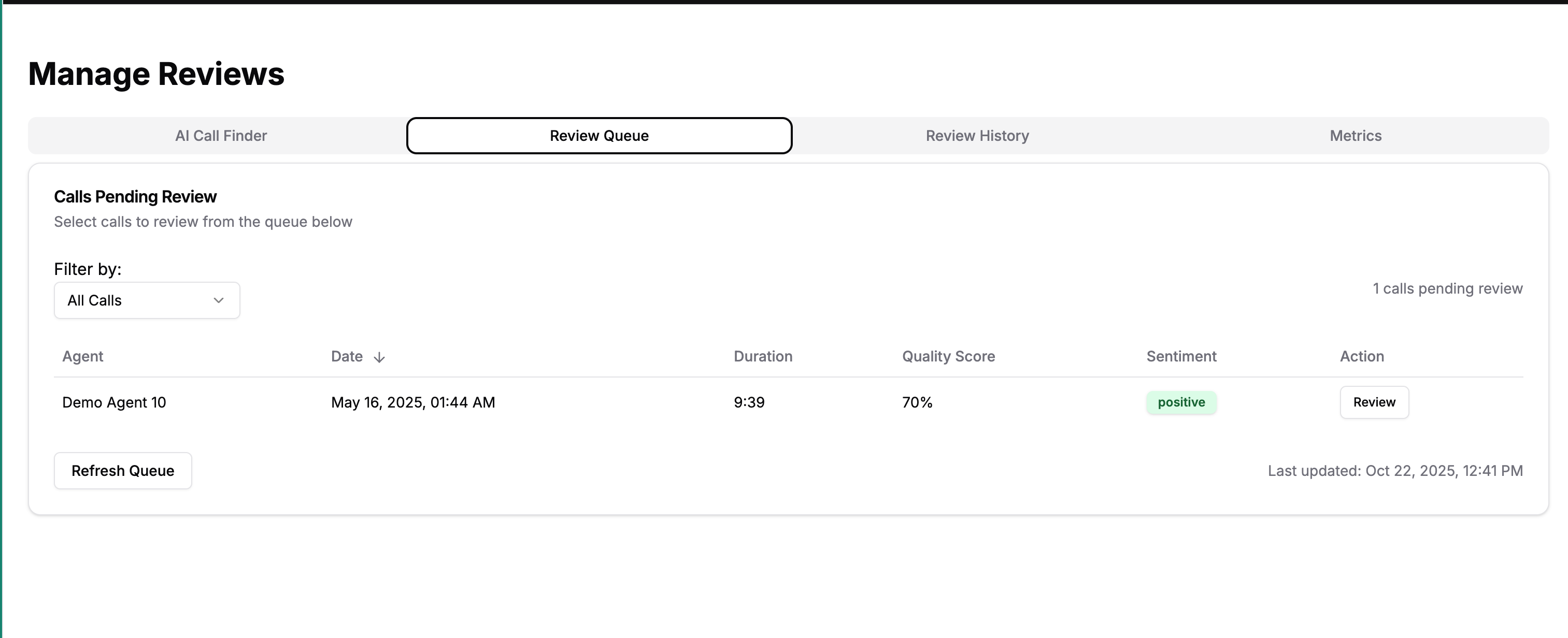
Your Review Queue shows all pending calls with complete details
Managing Your Queue
Navigate to the Review Queue tab to see:
Total calls pending review (shown in top right)
Filter options for different call types
Complete call details including:
Duration
Quality Score
Sentiment Analysis
Date and time
🎯 Best Practice: Aim for 3-5 calls per review session to maintain focus and provide quality feedback.
Step 4: Conducting the Review
Opening a Call for Review
From the Review Queue, click Review on any call
You'll enter the comprehensive Review Form interface
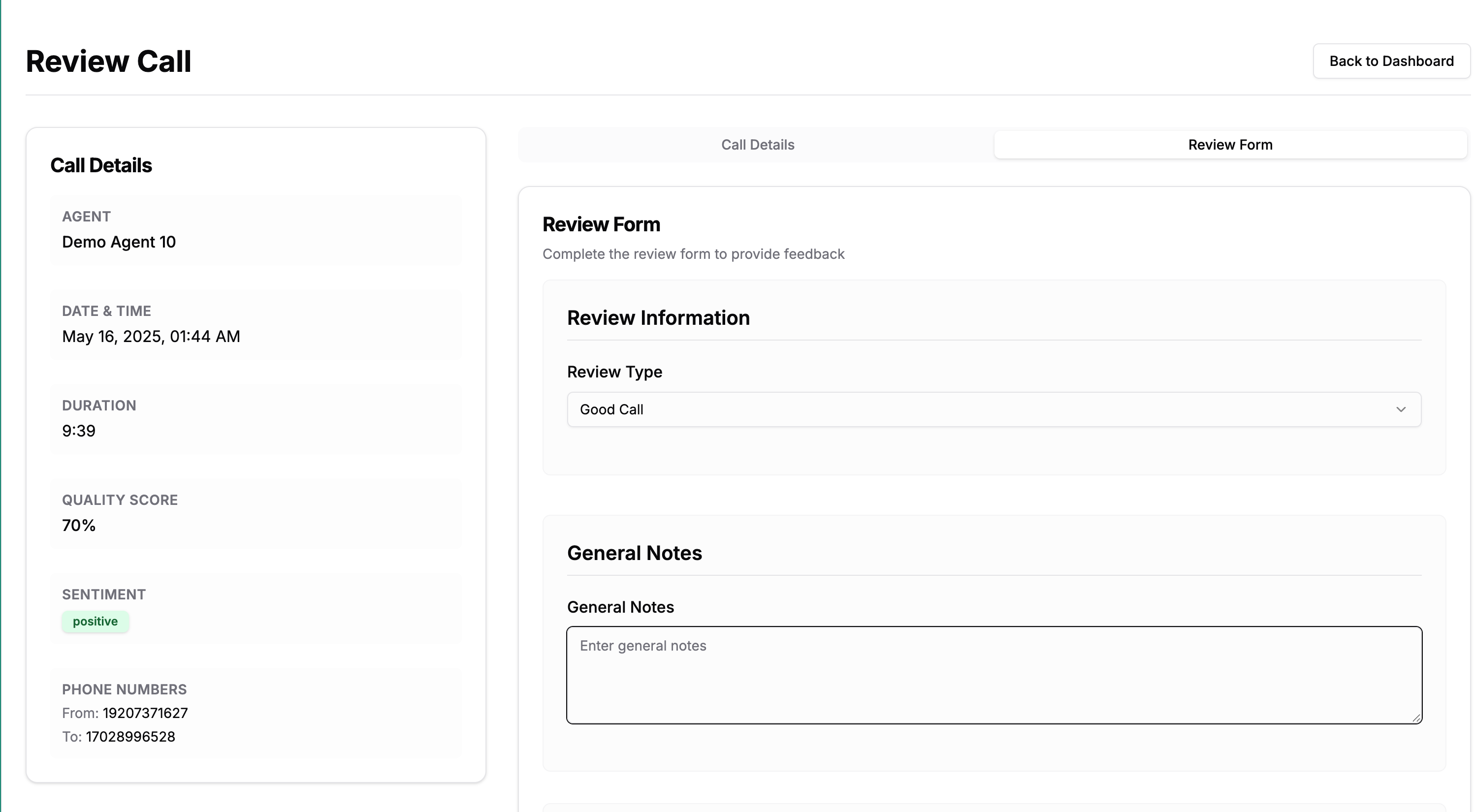
The Review Form provides structured sections for complete feedback
Understanding the Review Interface
Left Panel - Call Details:
Agent name and team
Date and time
Duration
Quality score (percentage)
Sentiment indicator
Phone numbers (anonymized as needed)
Right Panel - Review Form:
Review type selection
General notes
Strengths identification
Areas for improvement
Action items
Step 5: Completing the Review Form
Setting Review Type
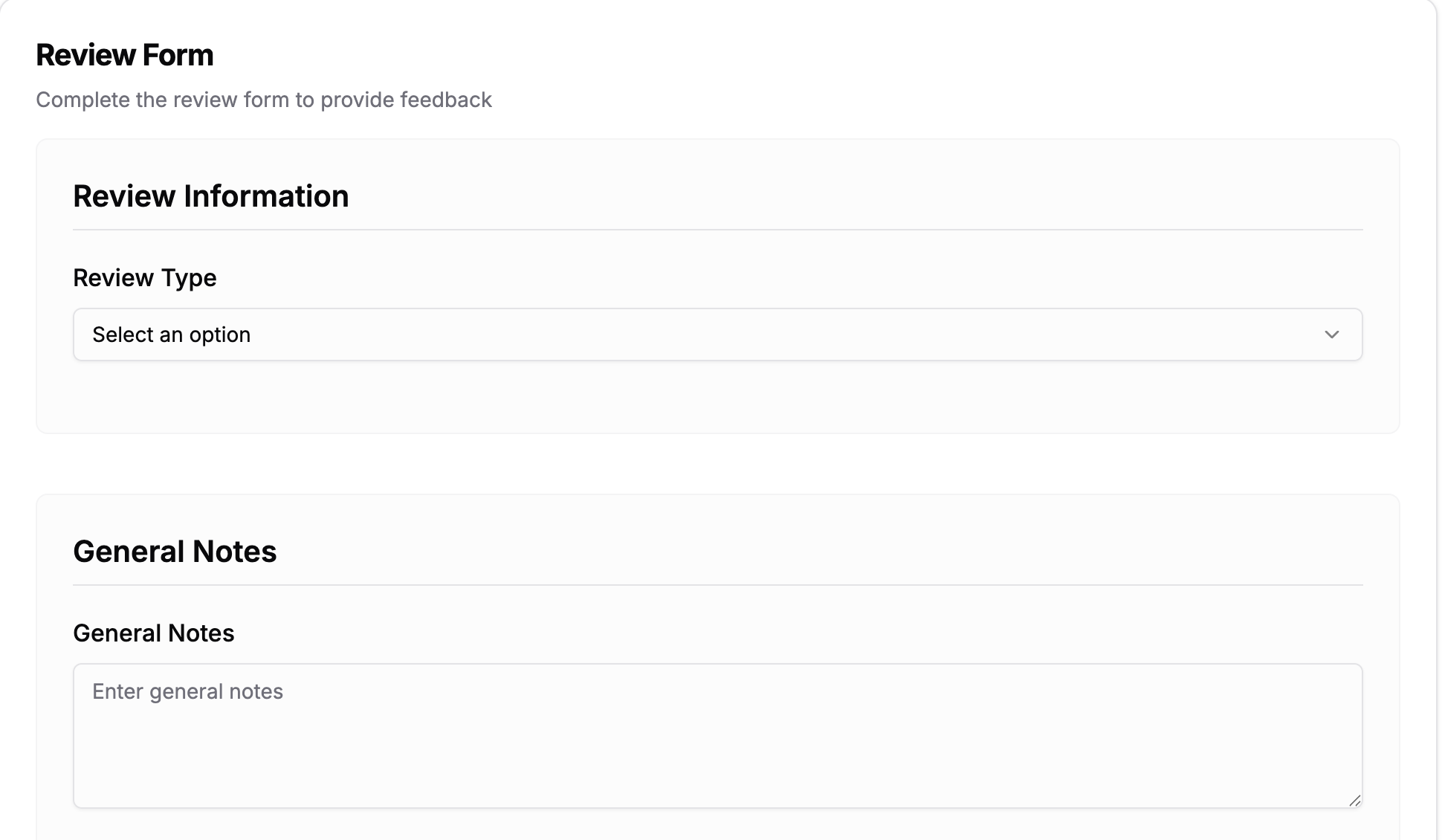
Choose the appropriate review category
Select from the dropdown:
Good Call - Exemplary performance to recognize
Needs Improvement - Coaching opportunity identified
Training Example - Call to use for team training
Adding General Notes
Capture the overall context and key observations:
Summary of the call situation
Customer's main concern or goal
How the interaction progressed
Final outcome
✏️ Writing Tip: Keep notes factual and specific. Instead of "handled well," write "addressed pricing concern by highlighting ROI in minute 3."
Identifying Strengths
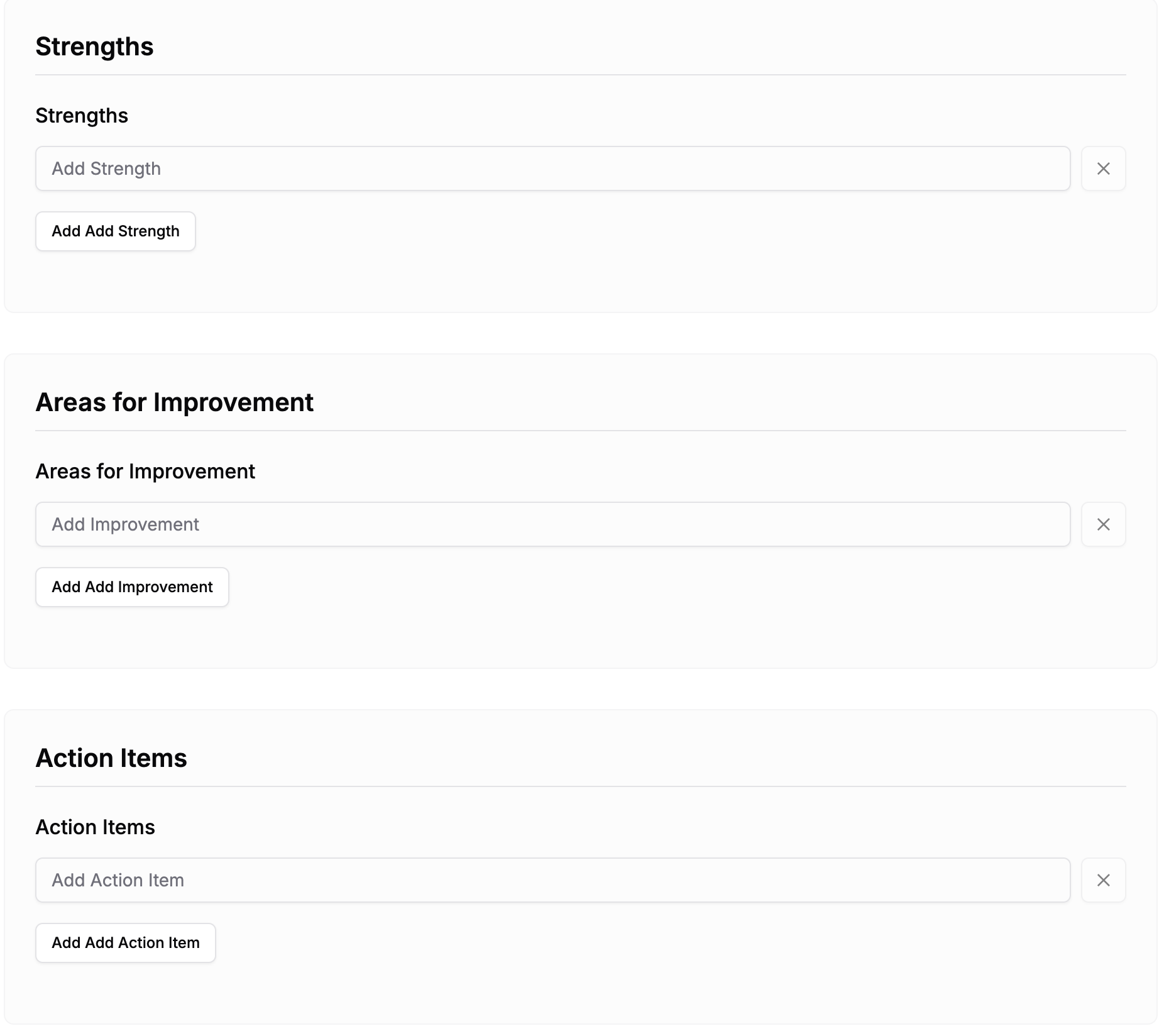
Add multiple strength tags for comprehensive recognition
Click Add Strength and select from categories like:
Objection Handling
Building Rapport
Product Knowledge
Closing Techniques
Discovery Questions
Add multiple strengths by clicking Add Add Strength for each one.
🌟 Coaching Tip: Always identify at least one strength, even in calls needing improvement. This maintains agent confidence.
Areas for Improvement
Similar to strengths, click Add Improvement to identify:
Pricing Discussions
Technical Explanations
Urgency Creation
Qualification Process
Next Steps Setting
Be specific and constructive in your selections.
Defining Action Items
Show Image Create specific, measurable action items
Click Add Action Item and enter specific, actionable steps:
"Practice the value proposition script before next call"
"Review competitor comparison sheet"
"Shadow senior agent for objection handling"
✅ Action Item Best Practices:
Make them specific and measurable
Set realistic timeframes
Limit to 2-3 items per review
Follow up in your next 1-on-1
Step 6: Sending and Tracking Reviews
Submitting the Review
Review all sections for completeness
Click Send to Agent button
The system will immediately notify the agent
Review is saved to your Review History
Accessing Review History
Navigate to the Review History tab to:
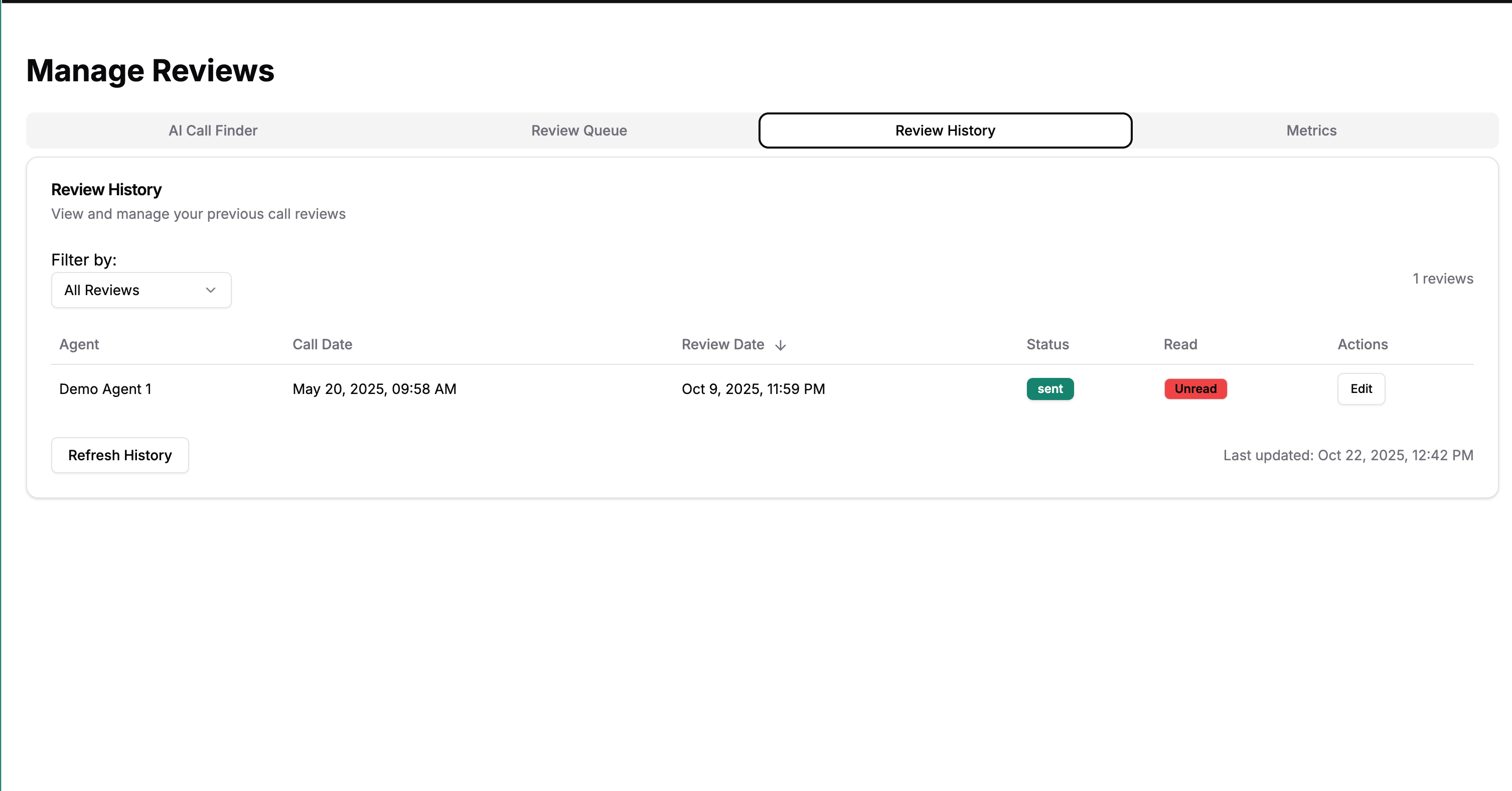
Track all completed reviews with status indicators
View all completed reviews
See read/unread status
Edit reviews if needed
Filter by agent or date range
Export for performance reviews
📧 Note: Agents receive email notifications for new reviews and can access them directly from their dashboard.
Step 7: Monitoring Review Metrics
Understanding Your Metrics Dashboard
The Metrics tab provides three views:
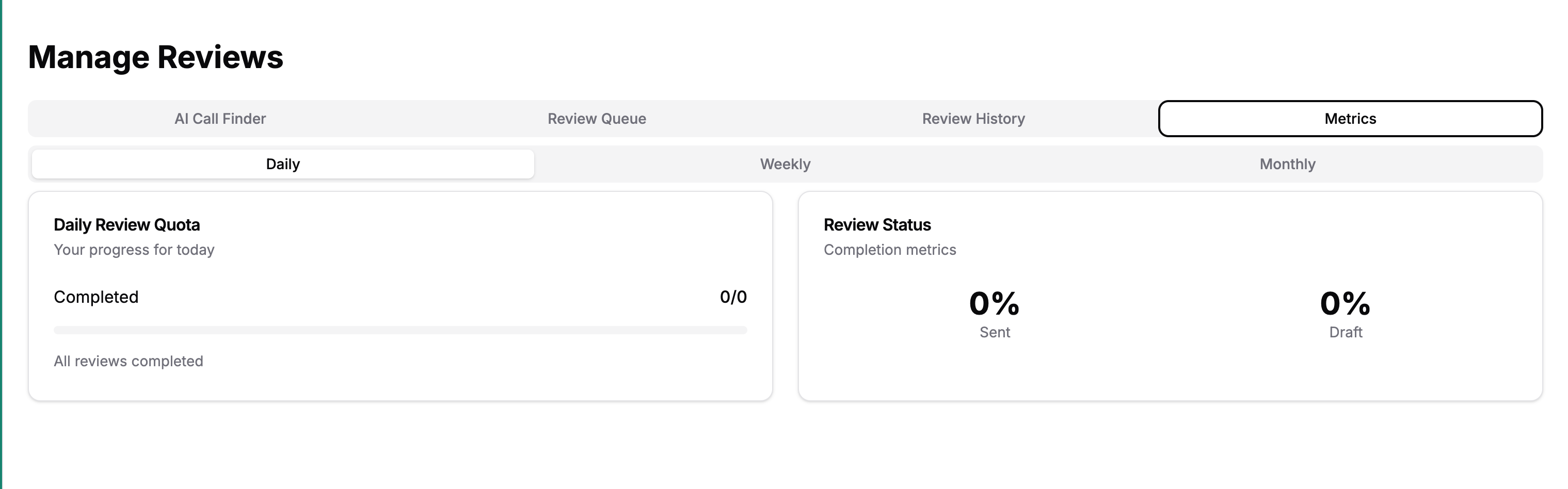
Track daily, weekly, and monthly review completion
Daily Review Quota
Shows progress toward daily goal
Updates in real-time
Resets each night at midnight
Weekly & Monthly Views
Percentage of reviews sent
Percentage of drafts pending
Team-wide coaching consistency
Setting and Meeting Quotas
💯 Recommended Quotas:
Daily: 2-3 reviews minimum
Weekly: 10-15 reviews for full-time managers
Monthly: 40-60 reviews for comprehensive coverage
Best Practices for Effective Reviews
Creating a Review Routine
Morning Reviews (Recommended)
Start each day with AI Call Finder
Review yesterday's calls while fresh
Send feedback before team meetings
Batch Processing
Set aside 30-minute blocks
Review similar call types together
Use consistent evaluation criteria
Balanced Feedback
Aim for 3:1 positive to improvement ratio
Recognize top performers publicly
Handle improvements privately first
Using AI Suggestions Effectively
🤖 AI Power Tips:
Vary your prompts to discover different coaching angles
Ask for specific scenarios: "Show me calls where we lost the deal"
Use time-based queries: "Find this week's shortest successful calls"
Compare performers: "Show me how top agents handle pricing"
Following Up on Reviews
Immediate Actions:
Check if agent has read the review
Schedule 1-on-1 for complex feedback
Share great calls in team meetings
Long-term Tracking:
Review history for performance trends
Identify recurring improvement areas
Celebrate progress on action items
Troubleshooting Common Issues
AI Call Finder Returns No Results
Try broader search terms
Check date ranges in your query
Ensure calls exist for the specified period
Remove specific agent names if included
Can't Add Calls to Queue
Verify the call isn't already in queue
Check if you have manager permissions
Refresh the page and try again
Contact support if issue persists
Review Not Sending to Agent
Ensure all required fields are complete
Check agent is active in the system
Verify your internet connection
Save as draft and try again later
Metrics Not Updating
Reviews may take 5 minutes to reflect
Check the correct time period is selected
Refresh the metrics page
Verify reviews were fully submitted
Tips for Success
💡 Power User Shortcuts:
Use keyboard shortcuts: Tab to navigate, Enter to select
Bookmark your favorite AI prompts
Create review templates for common scenarios
Set calendar reminders for review time
🎯 Quality Over Quantity:
One thorough review beats three rushed ones
Focus on actionable feedback
Be specific with timestamps and examples
Follow up to ensure implementation
📈 Driving Results:
Track improvement on specific metrics
Celebrate wins from implemented feedback
Share success stories across teams
Use reviews to identify training needs
Need Help?
If you need assistance with Manage Reviews:
Visit our FAQ section
Contact Support at support@analyzemycalls.ai
Schedule a training session with your Customer Success Manager
Last updated: October 2025